
Survey
This Lua script AI Rating & Tagging Script (Version 3.7) For Darktable automates the evaluation and keywording of images using artificial intelligence. It connects to a locally running, multimodal Large Language Model (LLM) to analyze images and generate objective ratings and relevant keywords based on custom criteria. The main goal is to accelerate and standardize the process of image selection and organization.
How does it work?
The workflow is simple and integrated directly into the Darktable interface:
- Image selection: The user selects one or more images in the light table from Darktable.
- Start analysis: A click on the „AI Rating“ button starts the process.
- Image export & Shipping: The script exports a temporary, reduced version of each image and sends it to the local AI server (e.g. LM Studio).
- AI analysis: The AI analyzes the image based on the instructions (the „Prompt“) in the configuration file. The user can define exactly what the AI should pay attention to (e.g. composition, sharpness, light, emotion).
- Get answer: The AI returns a structured text response that includes an assessment for each criterion and a list of matching keywords.
- processing: The script calculates a total score (0-100) from the individual ratings.
- write data: Based on a also configurable scale, the score is converted into a star rating (0-5). The detailed analysis, rating and keywords are then written directly to Darktable (DB & XMP) and optionally to a separate *.rate.xmp file.
Important: You determine which data is written!
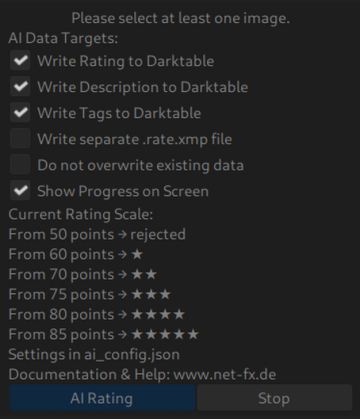
main features
- Local AI Analysis: All image data remains on the local computer. No internet connection to external services is required, which ensures data protection and cost control.
- Flexible configuration: Everything can be adjusted via the central ai_config.json file: the API endpoint of the AI server, the exact analysis prompt, the AI model and the scale for conversion of points to stars.
- Selective writing: The user can use checkboxes to control exactly which data should be written (evaluation, description, tags, separate XMP file).
- Protection for manual data: An optional „Do Not Overwrite“ function prevents any reviews or descriptions that have already been assigned to be overwritten.
- Integrated user interface: The script fits seamlessly as a separate module in the right sidebar of the light table.
- Batch processing: Hundreds of pictures can be sent for analysis at once without any problems.
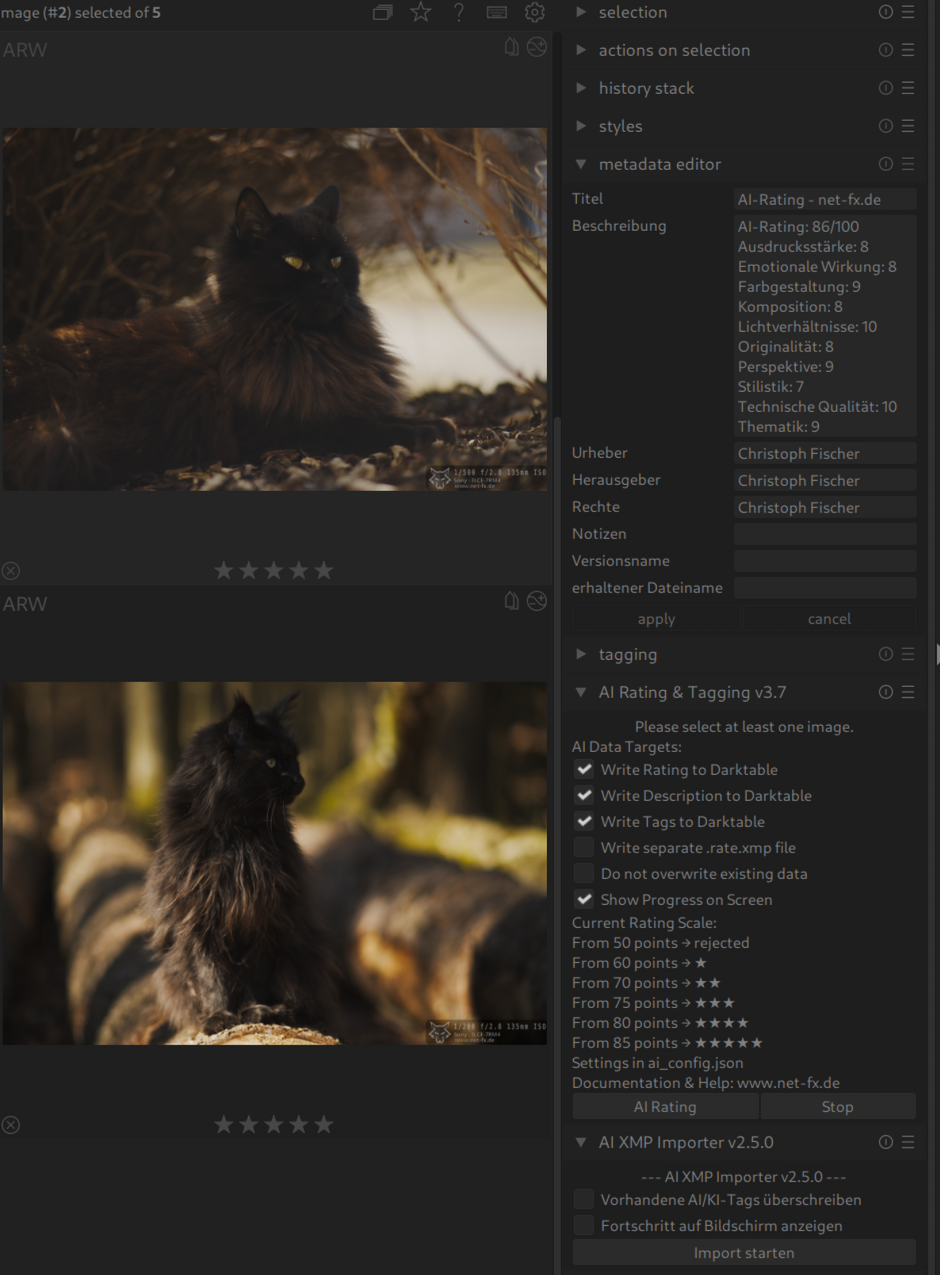
Author: Christopher Fischer – www.net-fx.de
Version: 3.7
License: (Add a license here, e.g. with or GPL, if desired)
Minimal Darktable Version: 5.2
Download: AI Rating & Tagging v3.7
Requirements
- Darktable: Version 5.2 or later (tested on Linux and Windows).
- Local AI API: A running instance of LMStudio (or compatible) with a vision model (e.g. for image analysis). The API must support HTTP requests.
- Lua Libraries: The script requires external LUA modules. These are not included in Darktable’s standard LUA environment and must be installed.
Install dependencies
The script uses the following libraries:
JSON(e.g. DKJSON): For parsing JSON configurations and API responses.socket.httpandLTN12(From Luasocket): For HTTP requests to the AI API.
On Linux (e.g. Arch Linux, Ubuntu/Debian)
# Arch Linux
sudo pacman -S lua-socket
yay -S lua-json
# Ubuntu/Debian
sudo apt install lua-socket lua-json # Oder lua5.3-socket, je nach Distribution If Luarocks is installed: Luarocks Install Luasocket and Luarocks Install DKJSON.
on Windows
- install Luarocks (the Lua package manager) from the official website. Choose the version to match Lua 5.3/5.4.
- Open the command line (CMD or PowerShell) and run: BashCopyLuarocks Install Luasocket Luarocks Install DKJSON
- Make sure the libraries are in Darktable’s Lua Path. For problems set environment variables:
lua_path: Path to.lua-files.lua_cpath: Path to.dllfiles (e.g.C:\Program Files\Luarocks\scl\bin\?.dll).
Note: Test the installation with a simple LUA script: LUA -E "Require Socket.HTTP; Require JSON". If errors occur, check the logs in DarkTable (help > show log).
Installation
- Download Script: Save the
.lua and .jsonfile in Darktable Lua Script directory (e.g..~/.config/darktable/lua/ai/on Linux or%AppData%\DarkTable\Lua\AI\on Windows). - Create your own configuration (optional): Edit the
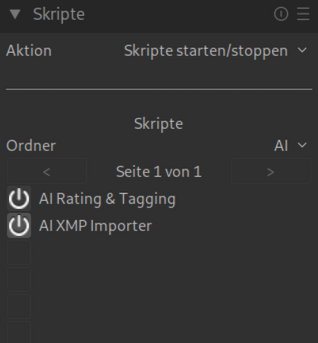
ai_config.json-file according to your ideas. - Start Darktable: The script loads automatically. It appears in the right panel of the LightTable view.
- Start API: Make sure your local API (e.g. LMStudio) is running and reachable.
Configuration
The script loads settings ai_config.json. It is included in the script.
example for ai_config.json
{
"api_settings":{"lmstudio_api_url":"http://localhost:1234/v1/chat/completions",
"model_tag":"local-model",
"max_tokens":800,
"temperature":0.2,
"retry_attempts":3,
"retry_delay":2},
"image_settings":{"max_width":800,"max_height":600,"jpeg_quality":85},
"rating_scale":[
{"score":0,"rating":0},
{"score":20,"rating":1},{"score":40,"rating":2},
{"score":60,"rating":3},{"score":80,"rating":4},
{"score":100,"rating":5}],
"system_prompt":"...","user_prompt":"..."
}- api_settings: Configuration for the AI API (URL, model, tokens, etc.).
- image_settings: Image processing (size, quality for export).
- rating_scale: Mapping of scores (0-100) to stars (0-5).
- system_prompt / user_prompt: Instructions for the AI (customizable for better results).
Note: Change the Prompts to tailor the AI to your needs (e.g. for landscape photos vs. Portraits).
Use
- Select pictures: Select images in Darktables LightTable.
- Customize settings: Use the checkboxes in the script panel:
- Overwrite Rating: Overwrites existing ratings.
- Overwrite description: Overwrites descriptions.
- Overwrite Tagging: Overwrites tags.
- Overwrite XMP Rating: overwrites
.rate.xmp-files. - Show Progress on Screen: Displays progress and AI responses.
- Start AI Rating: Click on „AI Rating“. The script exports images, sends them to the API and applies results.
- stop: Click „Stop“ if necessary to cancel.
- Check results: Ratings, tags and descriptions appear in Darktable. XMP files are saved next to the originals.
Performance: With many images it may take time (depending on API and hardware). Timing info is displayed.
Troubleshooting
- Script does not load: Check dependencies (see Installation). Show logs in Darktable.
- API error: Make sure LMStudio is running and the URL is correct. test with
curlor a browser. - Invalid Responses: Fit prompts in
ai_config.jsonto – The AI must deliver structured output (e.g. „### Keywords: …“). - Windows specific: path problems? Use absolute paths in
ai_config.json. - Debugging: Activate
verbose_debug = truein the detailed log script. (DarkTable -D Lua)
If you have other problems, contact the author.
changelog
- New logic and options for writing the data.
- V3.3: Write the rating to the Darktable DB and to the DarkTable XMP ( *.arw.xmp).
- V3.2: Improved error handling, timing logs, stop function.
- V3.0: First version with XMP support and GUI.
support
For questions, bugs or posts: www.net-fx.de, have fun with AI-supported tagging! 📸🤖